How to use canned messages?
Introduction
The purpose of canned messages is to provide pre-written answers for frequently asked questions. Canned messages can be configured in the back office under:
System configuration -> Live help configuration -> Canned messages
Accessing the Canned Messages List
To access the canned messages list, an operator must have the following permission:
'lhchat', 'explorecannedmsg'
To view all canned messages, including those not associated with their department, the operator needs this permission:
'lhchat', 'explorecannedmsg_all'
To create or edit canned messages, the operator requires this permission:
'lhchat', 'administratecannedmsg'
Usage
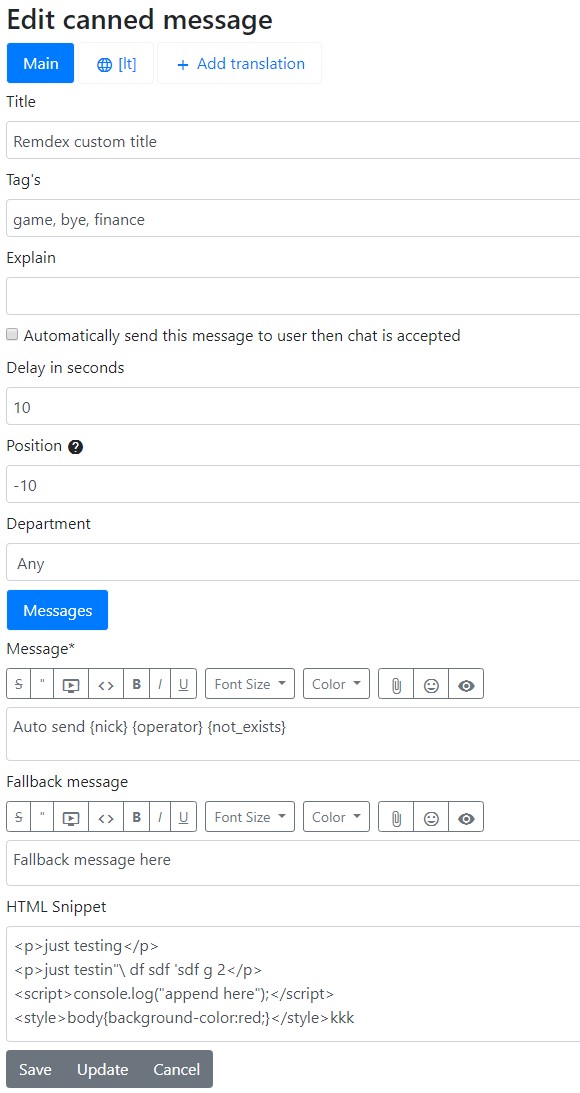
Canned messages support the following template variables:
{nick}- Visitor name{operator}- Operator name{email}- Visitor email address{phone}- Visitor phone number{<field_identifier>}- Field identifier from custom fields managed in the back office
Definition
Title
This title is visible in the back office.
Tags
Tags allow for quick searching of canned messages directly in the message sending area by typing #<tag> or just #.
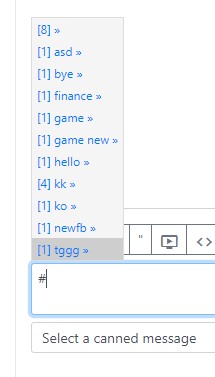
Multiple tags can be assigned to a single canned message if separated by a comma (e.g., apple, fruit).
You can quickly navigate through the dropdown menu using the up, down, right, and left arrow keys.
Canned Messages in the Chat Interface
Canned messages are accessible in the chat interface at the bottom of the window.

The search function looks for matches in the following fields:
- Title
- Message text
Explain
This field is for personal notes to remember the purpose of this canned message.
Automatically Send This Message When a Chat is Accepted
If enabled, this message is automatically sent to the user when an operator accepts the chat. If multiple messages are configured, only the first one will be sent. This feature is only available for the web client.
Delay in Seconds
This setting introduces a delay between when the operator accepts the chat and when the canned message appears in the user's chat window. This provides a more natural typing effect.
Department
This setting determines which departments can see the message. If no department is selected, the message will be visible in all chats.
Message
This is the default canned message that will be sent.
Fallback Message
If not all variables are present in the default message, this message will be sent instead.
HTML Snippet
If you enter HTML code in this field, it will be sent as HTML to the visitor. For example, you can use this to execute JavaScript on their browser, such as redirecting them to a custom page.
Permissions
To edit canned messages, an operator needs the following permission:
'lhchat', 'administratecannedmsg'
To view global canned messages, the operator also needs this permission:
'lhcannedmsg', 'see_global'
To enable personal canned messages for operators, assign them this permission:
'lhuser', 'personalcannedmsg'
To use the canned messages module in the chat window, operators require this permission:
'lhcannedmsg', 'use'