DeepPavlov (Sentiment Analysis)
This article explains how to set up sentiment analysis using https://deeppavlov.ai/ and a pre-built Docker image.
Installing DeepPavlov
git clone https://github.com/LiveHelperChat/sentiment && cd sentiment
docker-compose -f docker-compose.yml pull
wget https://livehelperchat.com/var/deep.tgz
tar zxfv deep.tgz
rm -f deep.tgz
Run DeepPavlov:
docker-compose -f docker-compose.yml up
Run DeepPavlov as a service:
docker-compose -f docker-compose.yml up -d
Testing the installation:
curl -X POST "http://localhost:5000/model" -H "accept: application/json" -H "Content-Type: application/json" -d "{\"x\":[\"all went no so good, but could have been better\"]}"
If the installation was successful, you should see output similar to this:
[["neutral"]]
Configuring Live Helper Chat
The requirements for this setup are:
- Sentiment should be set on chat close.
- Sentiment analysis should only run for chats with operator participation.
- A relevant chat subject should be set based on the sentiment.
This configuration uses webhooks.
Configuring the REST API Call
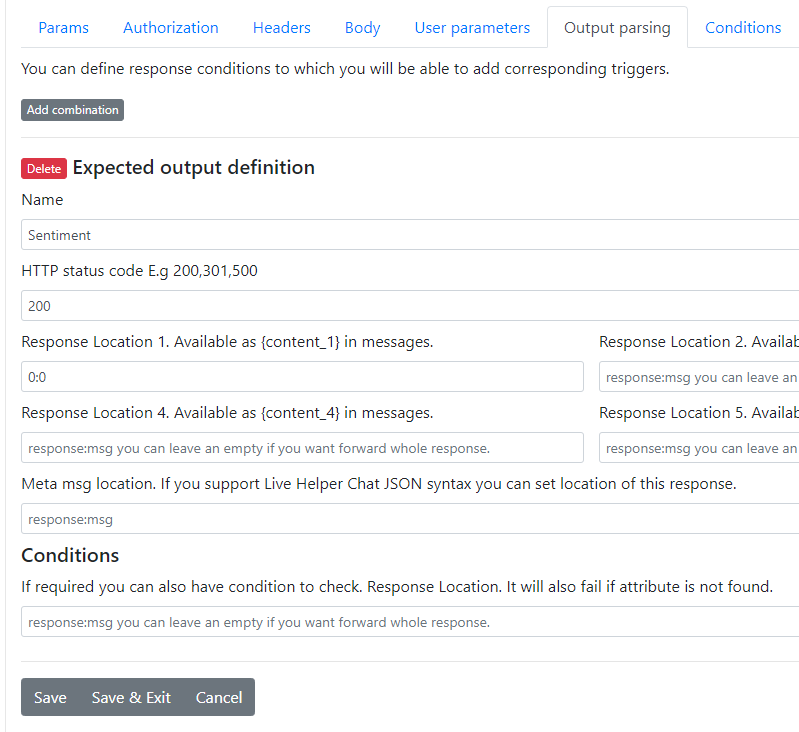
This setup sends only messages from the operator and visitor that occurred after the chat became pending to the bot. The {{msg_all_since_transfer_content}} placeholder is used for this purpose. You can also use other placeholders if needed.

The configuration expects a 200 header in the output, and the sentiment evaluation should be contained in the first element of the response.
Configuring the Bot
For simplicity, the bot configuration includes:
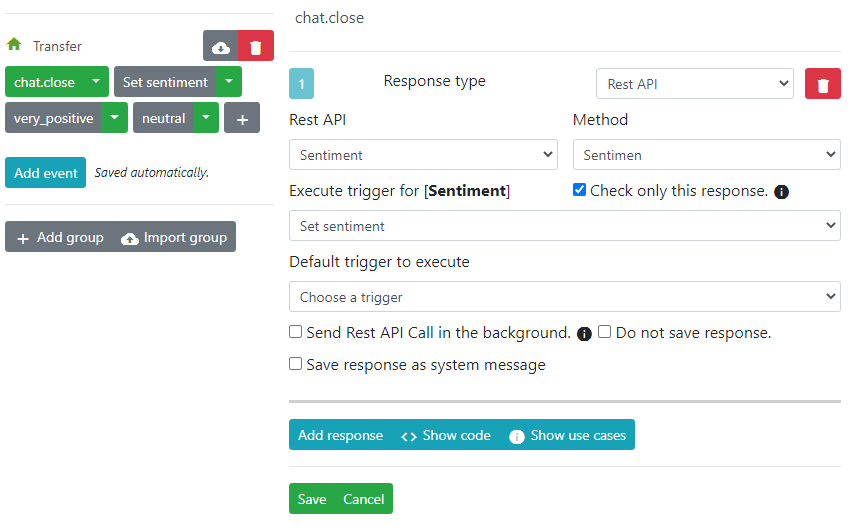
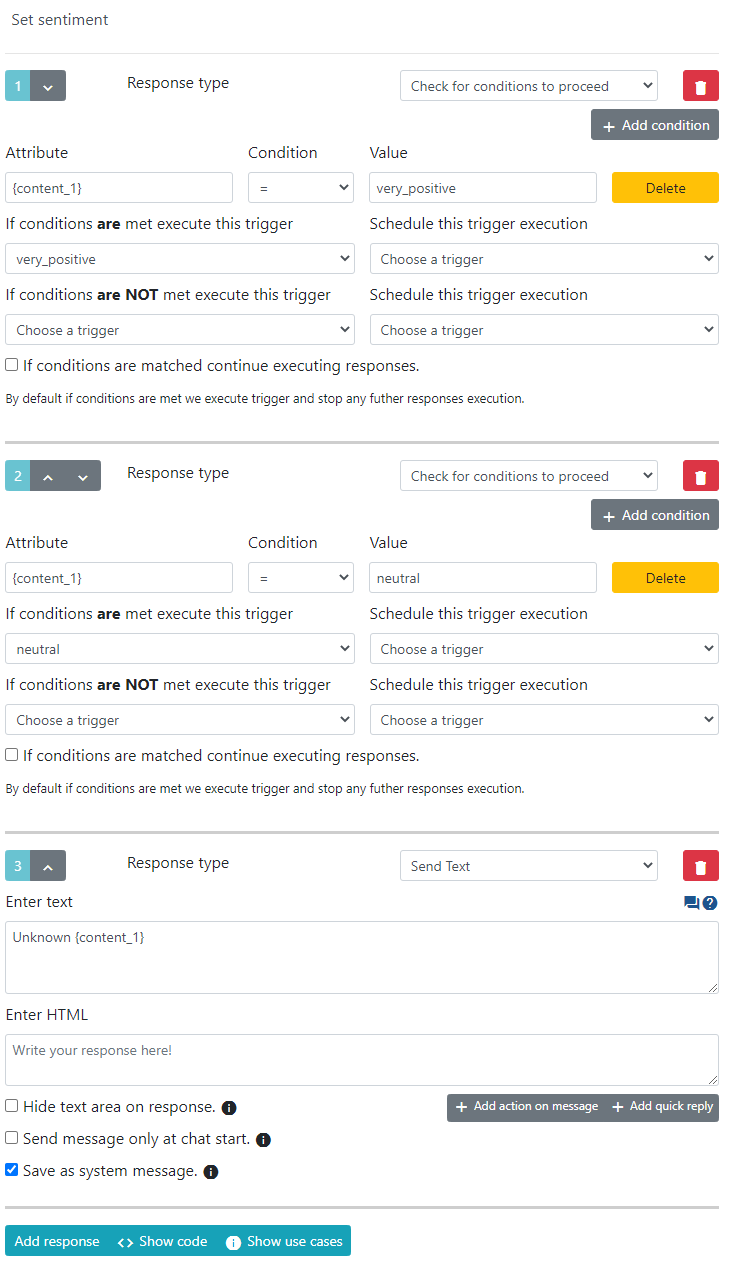
chat.close: This trigger is executed when a chat is closed.Set sentiment: This trigger is executed if the REST API returns a sentiment.very_negative,negative,neutral,positive,very_positive: These triggers set a subject based on the sentiment.
chat.close trigger:
Set sentiment trigger:
Currently, only very_positive and neutral evaluations are defined. You can add the missing evaluations in a similar way.
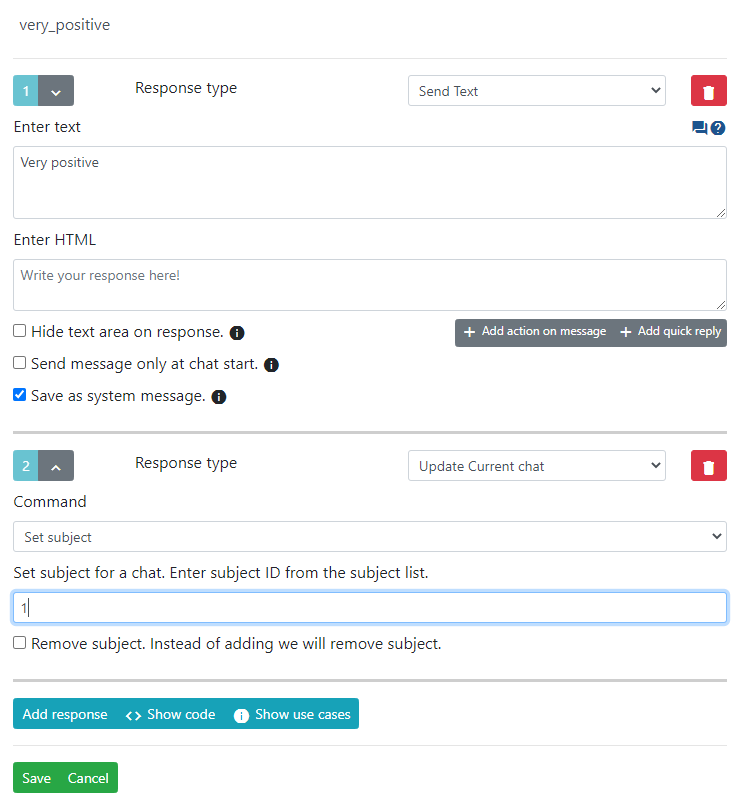
very_positive and neutral triggers:
The first text message is for debugging. The second response sets a subject with ID 1.
Configuring the Webhook
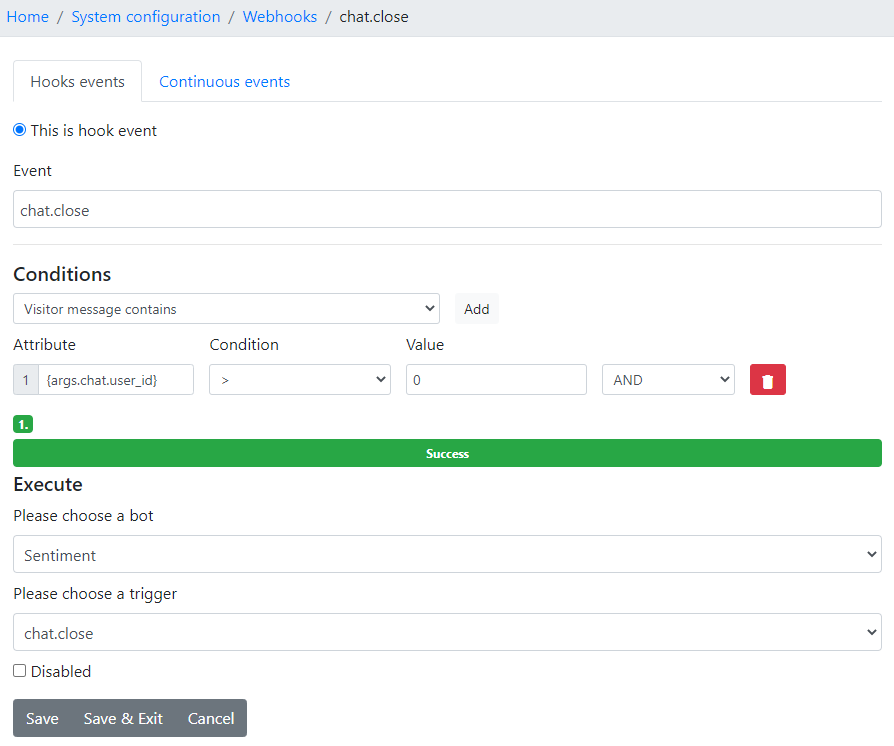
The webhook is configured to listen for the chat close event and to only trigger for chats that had operator involvement.
That concludes the setup.