How to setup round robin/automatic/auto chats assignment workflow?
This article describes how to setup auto assignment workflow in Live Helper Chat. Auto assignment works two ways out of the box.
- Live auto assignment - means chats are auto assignment on chat sync event in visitor widget. This allows auto assignment work even if there is no cronjob running. Disadvantage is it does not respect FIFO order if you have a lot of chats.
- Using workflow cronjob - this is a recommended way of having auto assignment setup. You should also disable live auto assignment in that case. Using cronjob chats will be assigned in FIFO order.
- Operators must be explicitly assigned to specific departments to participate in the auto assignment workflow. This is configured in each operator's account settings.
Introduction
In department you can find auto assignment settings.
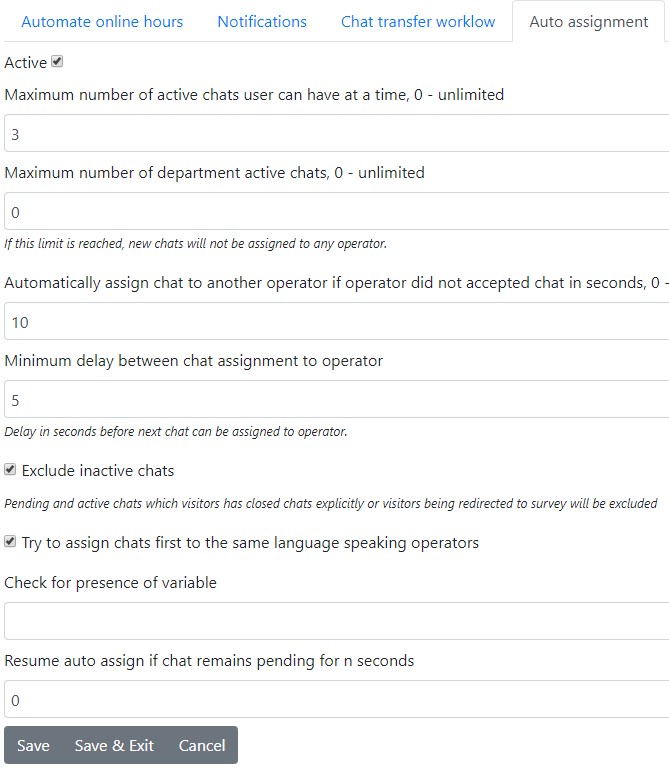
Attributes definition
Maximum number of active chats user can have at a time, 0 - unlimited
You can set how many actives chats user can have at a time.
If this variable is not set we would assign chat to user if
- Either operator does not have max chats limit OR and his active chats is less than
If this variable is set we would assign chat to user if
- Either operator does not have max chats limit set AND active chats ir less than defined maximum number of chats in department.
- OR
- Either he has limit set and number of chats is less than number of active chats he has now
Maximum number of department active chats, 0 - unlimited
Auto assignment workflow would be executed only if department is having less active chats than defined amount. If this limit is reached, new chats will not be assigned to any operator.
Automatically assign chat to another operator if operator did not accepted chat in seconds, 0 - disabled
If you set 10 means operator would have 10 seconds to accept a chat before chat is assigned to another operator.
- Back office is checking for a new chats every 10 seconds by default. You should decrease that time to 3 or 4 seconds in. chat configuration
- Chat is assigned to operator even if operator is in invisible mode. Operator participating in auto assignment workflow should be online and in visible mode. If invisbile operator opens a chat nothing will happen and chat will be assigned to another operator!
Minimum delay between chat assignment to operator
Then we assign chat to one operator we can give some delay before another chat can be assigned to the same operator.
Exclude inactive chats
Pending and active chats which visitors has closed chats explicitly or visitors being redirected to survey will be excluded
Assign chat to lowest number of chats having operator
We will try to assign chat first to operator who has the lowest number of chats
Try to assign chats first to the same language speaking operators
Operator in their accounts can choose what languages they are speaking. So it's possible to try first to assign chats to same language speaking operators.
Check for presence of variable && Resume auto assign if chat remains pending for n seconds
additional_data.<variable>chat_variable.<variable>
Using this functionality we can allow to participate in auto assignment chats which have custom variables only. By defining time we do these checks only if chat is not older than defined amount of time.
This functionality should be used only by advanced users which want to do some fancy things 😄
Resume auto assign if chat remains pending for n seconds will keep looking for additional chat variables until chat is in the pending queue less than defined amount of time. In other words keep looking for chat variables for that amount of time before continuing default auto assignment workflow.
Assign chat by operator priority
Once everything is set up. It will assign chats first to agents with higher assignment priority.
In user account once you are assigning operator to department you can set his assignment priority. Once you activate this option in department
$sort = 'last_accepted ASC'; // Sort by default by last accepted chat
if (should I sort by `lowest number of chats having operator`) {
    $sort = 'active_chats ASC, last_accepted ASC';
}

if (should I sort by agent assignment priority) {
    $sort = 'assign_priority DESC, '.$sort;
}
Assignment priority can be set in user account per department or department group.
Chat priority queue
First, enable it by checking Enable chat priority queue in the department's auto-assignment settings.
Optionally, you can also sort agents by Assign chat by operator priority also within the chat priority queue. This applies the same assign_priority ordering used by the regular queue (see Assign chat by operator priority).
Department settings
These settings are configured in the department's Auto assignment tab, inside the Chat priority queue fieldset:
| Setting | Description |
|---|---|
| Enable chat priority queue | Master switch. When enabled, chats that fall within the priority range are processed by the chat priority queue first. |
| Assign chat by operator priority also | Sort eligible operators by their assign_priority (highest first), on top of the default last_accepted ordering. |
| Assign only operators who have opted into the chat priority queue | When enabled, only operators who have Opt into chat priority queue checked in their user settings are eligible for the priority queue. Operators without that flag stay in the regular queue. |
| Minimum agent assignment priority | If set above 0, only operators whose assign_priority is >= this value are considered for the priority queue. |
| Minimum chat priority | Chats with priority below this value are not processed by the chat priority queue and fall through to the regular queue. |
| Maximum chat priority | Chats with priority above this value are not processed by the chat priority queue and fall through to the regular queue. |
User (operator) settings
These settings are configured per operator in their department assignment modal (see user account):
| Setting | Description |
|---|---|
Operator assignment priority (assign_priority) | Higher value = picked first when Assign chat by operator priority (or also) is enabled. |
Min chat priority (chat_min_priority) | Operator will only receive chats with priority >= this value from the chat priority queue. 0 = no lower limit. |
Max chat priority (chat_max_priority) | Operator will only receive chats with priority <= this value from the chat priority queue. 0 = no upper limit. |
Min chat priority — standard queue (chat_min_priority_std) | Operator will only receive chats with priority >= this value from the regular auto-assignment queue. 0 = no lower limit. |
Max chat priority — standard queue (chat_max_priority_std) | Operator will only receive chats with priority <= this value from the regular auto-assignment queue. 0 = no upper limit. |
Opt into chat priority queue (only_priority) | When checked, the operator is excluded from the regular auto-assignment queue. They can only receive chats via the chat priority queue. |
⚠️ Operators must be explicitly assigned to the department (or department group) — simply checking "All departments" in user settings is not sufficient.
Scenario-based setup guides
Two settings control which queue an operator belongs to:
- Opt into chat priority queue — operator-level setting (per department or department group).
- Assign only operators who have opted into the chat priority queue — department-level setting.
The scenarios below show how to combine them for common use cases. Assume a department priority range of 6–10 for all examples.
Scenario 1: Operators work in both queues (default mixed setup)
Goal: All operators can receive both regular chats (priority 0–5) and priority chats (6–10).
Department configuration:
- ✅ Enable chat priority queue
- ❌ Assign only operators who have opted into the chat priority queue — keep disabled
- Set Minimum chat priority to
6and Maximum chat priority to10
Per-operator configuration (for every operator):
- ❌ Opt into chat priority queue — keep disabled
- Set Min chat priority and Max chat priority to
0(or match the department range if you want to restrict some operators)
Result: Chats in 6–10 are processed by the chat priority queue and can be assigned to any operator whose priority ranges match. Chats in 0–5 use the regular queue and are also available to all operators.
Scenario 2: Separate pools — priority-only and normal-only operators
Goal: A dedicated team handles priority chats (6–10), while the rest of the team handles only regular chats (0–5).
Department configuration:
- ✅ Enable chat priority queue
- ✅ Assign only operators who have opted into the chat priority queue — enable this
- Set Minimum chat priority to
6and Maximum chat priority to10
Per-operator configuration:
For priority-only operators:
- ✅ Opt into chat priority queue
- Set Min chat priority to
0and Max chat priority to0(or match6/10)
For normal-only operators:
- ❌ Opt into chat priority queue — keep disabled
- Set Min chat priority to
0and Max chat priority to0
Result: Priority chats go only to the priority team. Normal chats go only to the normal team. The two pools are completely separate.
Scenario 3: Priority-only operators (dedicated priority queue)
Goal: Certain operators should only receive priority chats and never be assigned regular chats.
Department configuration:
- ✅ Enable chat priority queue
- ❌ Assign only operators who have opted into the chat priority queue — can be enabled or disabled depending on whether you want non-priority operators to also get priority chats (see Scenario 2 or 4)
Per-operator configuration (for priority-only operators):
- ✅ Opt into chat priority queue
- Set Min chat priority and Max chat priority to match the department range (e.g.,
6and10)
Result: These operators are removed from the regular queue entirely. They only receive chats that pass through the chat priority queue.
Scenario 4: Normal-only operators (excluded from priority queue)
Goal: Certain operators should never receive priority chats, only regular chats.
Department configuration:
- ✅ Enable chat priority queue
- ✅ Assign only operators who have opted into the chat priority queue — enable this
Per-operator configuration (for normal-only operators):
- ❌ Opt into chat priority queue — keep disabled
- Set Min chat priority to
0and Max chat priority to0
Result: Because Assign only operators who have opted into the chat priority queue is enabled at the department level, these operators (who do not have the operator-level flag) are excluded from the priority queue. They only receive regular chats.
Scenario 5: Different operators handle different priority ranges
Goal: Within the same department, partition priority chats so that different operators (or teams) handle chats of different priority levels. For example:
- Operator Alice handles only priority-
100chats (VIP customers) - Operator Bob handles only priority-
200chats (enterprise customers) - Operator Carol handles both
100and200 - Operators Dave and Eve handle only regular chats (
0–99)
The setup is broken into two parts: department-level changes (apply once) and per-operator changes (apply per user).
Department configuration (apply once)
These settings are configured in the department's Auto assignment → Chat priority queue fieldset:
| Setting | Value | Why |
|---|---|---|
| Enable chat priority queue | ✅ Enable | Turns on the priority workflow |
| Minimum chat priority | 100 | Chats below 100 use the regular queue |
| Maximum chat priority | 200 | Chats above 200 use the regular queue |
| Assign only operators who have opted into the chat priority queue | See sub-scenarios below | Controls whether normal operators are excluded from the priority queue |
Per-operator configuration
Each operator's settings are in their department assignment modal (see user account):
| Operator | Min chat priority ( chat_min_priority) | Max chat priority ( chat_max_priority) | Opted into chat priority queue ( only_priority) | Handles |
|---|---|---|---|---|
| Alice | 100 | 100 | See below | Priority-100 only |
| Bob | 200 | 200 | See below | Priority-200 only |
| Carol | 100 | 200 | See below | Priority 100 and 200 |
| Dave | 0 | 0 | ❌ disabled | Regular only |
| Eve | 0 | 0 | ❌ disabled | Regular only |
The only_priority flag (Opt into chat priority queue) and the department's Assign only operators who have opted into the chat priority queue setting work together. Two common sub-scenarios:
Sub-scenario 5A: Mixed — priority operators also receive regular chats
Goal: Alice, Bob, and Carol can receive both priority and regular chats. Dave and Eve handle regular chats only.
Department: ❌ Assign only operators who have opted into the chat priority queue — disabled
Per-operator only_priority flag:
| Operator | Opted into chat priority queue ( only_priority) |
|---|---|
| Alice | ❌ disabled |
| Bob | ❌ disabled |
| Carol | ❌ disabled |
| Dave | ❌ disabled |
| Eve | ❌ disabled |
Result:
| Chat priority | Assigned to |
|---|---|
0–99 (regular) | Alice, Bob, Carol, Dave, Eve |
100 | Alice, Carol |
200 | Bob, Carol |
Alice, Bob, and Carol participate in both queues. Their chat_min_priority/chat_max_priority ranges only restrict which priority chats they receive — regular chats are unaffected.
Sub-scenario 5B: Separated — strict priority-only and normal-only pools
Goal: Alice, Bob, and Carol receive only priority chats. Dave and Eve receive only regular chats. No overlap.
Department: ✅ Assign only operators who have opted into the chat priority queue — enabled
Per-operator only_priority flag:
| Operator | Opted into chat priority queue ( only_priority) |
|---|---|
| Alice | ✅ enabled |
| Bob | ✅ enabled |
| Carol | ✅ enabled |
| Dave | ❌ disabled |
| Eve | ❌ disabled |
Result:
| Chat priority | Assigned to |
|---|---|
0–99 (regular) | Dave, Eve only |
100 | Alice, Carol |
200 | Bob, Carol |
With Assign only operators who have opted into the chat priority queue enabled, Dave and Eve are excluded from the priority queue. Alice, Bob, and Carol must have only_priority enabled to be eligible. The pools are completely separated.
Fallback behavior
When Assign only operators who have opted into the chat priority queue is enabled, the system tries the chat priority queue first. If no eligible priority operator is found (all are offline, at capacity, or priority ranges don't match), the chat falls through to the regular assignment workflow.
To keep priority chats strictly separated, ensure:
- Priority operators are online and within capacity limits
- Their
chat_min_priority/chat_max_priorityranges cover the expected chat priorities - The department's minimum/maximum chat priority range is correctly set
The fallback runs through the regular queue, so the operator level standard queue priority range is applied there as well - an operator whose standard range excludes the chat cannot receive it even as a fallback.
Standard queue priority range
The regular (standard) auto assignment queue has its own operator level priority range: chat_min_priority_std and chat_max_priority_std. It is independent from the chat priority queue pair (chat_min_priority / chat_max_priority) and is meant for "this operator should only handle chats inside this priority band" routing.
| Field | Meaning |
|---|---|
chat_min_priority_std | The operator receives only chats with priority >= this value from the regular queue. 0 = no lower limit. |
chat_max_priority_std | The operator receives only chats with priority <= this value from the regular queue. 0 = no upper limit. |
- Both values are inclusive and default to
0, which means no limit - nothing changes until you set them. - Both fields are set per operator in the department (or department group) assignment modal, next to the chat priority queue fields.
Where the chat priority comes from:
- The department Priority field (Priority, used for chats priority) is the priority of every new chat started in that department.
- System configuration → Chat priority rules override the priority based on chat variables or the visitor role.
- The chat start API/widget can pass
priorityexplicitly.
If the department priority is left at 0, most chats have priority 0 - see Important behaviour before you set a minimum.
Which queue sees which chat
| Situation | Query which picks the operator | Priority range which is applied |
|---|---|---|
| The department chat priority queue is enabled and the chat priority is inside the department range | chat priority queue first | chat_min_priority / chat_max_priority |
| The chat priority is outside the department range, or no priority operator was found | same language pre-pass, then the regular query | chat_min_priority_std / chat_max_priority_std |
| The operator has Opt into chat priority queue checked | never the regular query | the standard range is irrelevant |
Examples
Example 1: global cap - a team never receives chats below priority 50
Goal: the senior team should handle only important chats, every chat with priority 0-49 must be handled by somebody else.
Per-operator configuration (for each senior team member):
| Min chat priority - standard queue | Max chat priority - standard queue |
|---|---|
50 | 0 |
Result:
| Chat priority | Offered to the senior team? |
|---|---|
0-49 | ❌ never |
50+ | ✅ normally (still subject to online state, capacity, assignment delay, ...) |
If every operator of the department is capped this way and nobody else is online, the low priority chats simply stay in the pending queue. These fields have no "best effort" fallback - keep at least one operator with 0 / 0 in the department if you need a catch-all.
Example 2: split one department by priority band (junior / senior)
Goal: junior operators take the low priority tail, senior operators take everything else.
| Operator group | Min chat priority - standard queue | Max chat priority - standard queue | Handles |
|---|---|---|---|
| Junior | 0 | 49 | 0-49 |
| Senior | 50 | 0 (unlimited) | 50+ |
Because the two ranges do not overlap, a chat is offered to exactly one of the groups. This is the standard queue counterpart of Scenario 5 above, which partitions the chat priority queue instead.
Example 3: VIP-only operator
Goal: one dedicated agent handles everything from priority 100 up.
| Min chat priority - standard queue | Max chat priority - standard queue |
|---|---|
100 | 0 |
Chats with priority 0 - which is the default for a new chat - are not offered to this operator at all. Set the department Priority field and/or add System configuration → Chat priority rules first, otherwise the VIP agent receives nothing.
Example 4: keep one specific band away from a team
Goal: system generated chats with priority 200 should never reach the first line team, but first line should still get everything from 50 up.
| Min chat priority - standard queue | Max chat priority - standard queue | Handles |
|---|---|---|
50 | 199 | 50-199 |
The second level team receives 200+ with chat_min_priority_std = 200 (and chat_max_priority_std = 0).
Example 5: three tiers - chat priority queue and standard range together
Goal: a dedicated desk for the priority band, everybody else split by the standard range, with a working fallback.
Department settings (Auto assignment → Chat priority queue): ✅ enable the chat priority queue with Minimum chat priority 6 and Maximum chat priority 10.
| Operator | Opt into chat priority queue | Min chat priority ( chat_min_priority) | Max chat priority ( chat_max_priority) | Min chat priority - standard ( chat_min_priority_std) | Max chat priority - standard ( chat_max_priority_std) |
|---|---|---|---|---|---|
| VIP desk | ✅ enabled | 6 | 10 | - | - |
| Senior | ❌ disabled | 0 | 0 | 0 | 0 |
| Junior | ❌ disabled | 0 | 0 | 0 | 5 |
Result:
| Chat priority | Assigned to |
|---|---|
6-10 | VIP desk |
0-5 | Senior and Junior |
6-10 while the VIP desk is offline | Senior only - the chat falls through to the regular queue, where Junior is excluded by his standard maximum of 5 |
Important behaviour
- Applied per
lh_userdeprow. Every department assignment and every department group assignment creates its own row and the regular query evaluates all rows of the chat department. If an operator has more than one row for the same department, the chat can be received through any row whose range matches. - Only the regular path is affected. The chat priority queue keeps using
chat_min_priority/chat_max_priority. - The same language pre-pass is affected too - it belongs to the regular queue.
- The fallback is affected too. When the chat priority queue finds nobody, the chat falls back to the regular queue where the standard range applies.
- No automatic bypass. An operator outside the range is not a candidate at all. If nobody else matches, the chat stays pending - see Example 1 above.
- Operators who opted into the chat priority queue never participate in the regular queue, so these fields have no effect for them.
- Changing the values does not reassign anything. Already assigned and pending chats keep their operator, the fields affect the next auto assignment run only.
How to verify
- The operator statistic modal (Users → operator → statistic, or the chart icon next to an operator) has an Auto assign test tab: enter a chat ID and you get a rule by rule verdict for that operator, including the
operator.chat_priority_range_stdcheck. - The User stats tab of the same modal shows both priority ranges - the chat priority queue range and the standard queue priority range - of every assignment of that operator.
- AI/MCP clients can ask the same question with the
explain_chat_auto_assigntool (passuser_idoremail); the answer lists reasons such asoperator_chat_priority_range_std. - When a chat was assigned, hovering the assignment icon in the chat list shows the picked operator and the next candidate.
Workflow cronjob influence
If you want auto assignment workflow to work independently of what visitor does (still on site or not) you have to be running workflow cronjob. I suggest in that scenario run cronjob every 5 seconds.
Disable live auto assignment
Usually auto assignment happens when visitor is waiting untill someone accepts a chat. If you are running workflow cronjob it makes sense uncheck this as cronjob will do this part. This also will make visitor UI feel faster.
Disable live auto assign option can be found here
System configuration -> Live help configuration -> Chat configuration -> Misc
How to deny the operator to open all pending chats?
By default operator can open all pending chats. Not only assigned to him. If you are using auto assignment workflow and do not want to allow an operator to open all pending chats just remove this permission.
'chat','open_all'
How to deny the operator to open all chats?
If you remove this permission operator will be able to open chats only where he is an owner.
'lhchat','allowopenremotechat'
How automatically open assigned chat for an operator?
- You have to in user account check
Automatically accept assigned chats - Operator has to have enabled
Pending chats list enabledorMy pending and active chats list enabled
How to show pending chats order from oldest to newest?
You can change pending chats order in chat configuration
How prioritise a chat to be assigned first if chat is waiting more than X amount of time?
This is usefull in case you are having long queue and chat's wait time becomes very long. As an example if chat is waiting more than 10 minutes you want it to be assigned first.
Navigate to
System configuration -> Chat configuration > Misc
Enter value for this field
Chats waiting in pending queue more than n seconds should be auto-assigned first. Time in seconds'
Sample
To user explicitly has to be assigned department. It's not enough just check all departments. Within each department have to be checked department.
Department adjustment
You have in department "Auto assignment" secion enable automatic chats transfer.
- Also optionally you can setup how many active chats user can have at a time.
- How long chat should be assigned to user before it will be transfered to another user, if first user did not accepted it.
- In most cases it's enough just enable enable it. I also recommend to read round robin implementation for chat's https://docs.google.com/file/d/0B5uaj1QNYoNTVjRnd1ozdmJDYlkwMEl0T0p6NnZLeThXeEww/edit
Users adjustment
By default users sees all pending department chats. To disable that and show only to him assigned pending chats you have to
- Edit user and in "Pending chats" tab, uncheck "User can see all pending chats, not only assigned to him"
- By default operators do not have permission to choose what pending chats they can see. You can grant permission to choose them personally what list he want's to see. Assigned to operators role permission
- "lhuser" => "allowtochoosependingmode" | "Users, groups management" => "Allow user to choose what pending chats he can see, only assigned to him or all."
- User has to be online for chat being assigned to him
- If you want that assigned chat would be opened automatically for user. User in his account has have checked "Chats" => "Automatically accept assigned chats"
- If user does not see Chats tab in his account you have to give operators role this permission Module - (lhuser) Function - (allowtochoosependingmode)
- Also in "Visible lists" worh checking "My pending and active chats list enabled" so user would see new widget where only to him assigned active and pending chats would be presented. For user to be able to change what he sees he has to have this permission
- Module - ('lhuser'), Function - ('change_visibility_list')
Chat acceptance workflow
This information you see once you move your mouse over assignment action icon
click_notification- notification was clickedclick- widget was clicked or chat listopened_chats- chat was loaded because it was opened beforealert_open- alert was shown and operator opened a chattransfer_open_background- transferred chat was opened in background modetransfer_open- transferred chat was openedauto_accept- chat was auto opened because auto accept is turned onauto_accept_transfer- transferred chat was auto opened because auto accept is turned onview_clicked- chat in the view was clickedsupport_chat- opened fromsupport_chatsliststart_chat_by_id- chat was started bystartChatByIDfunctionchannel_message_open- opened by received channel messagechannel_message_reload- opened by received channel channel messagepopup_open- chat was opened from popup
I don't understand why chat was assigned to operator A but not operator B?
This is the most common question I get until support managers starts to understand every bit. Here is what you can check
- Check is both operator assigned to the department you are checking against. Use user edit window.
- Make sure any other setting are the same for those operators.
- Check were they online during specific moment.
System configuration -> Users -> Online hourschoose one user at a time. They both should be online during that moment. - In specific chat which you think was assigned incorrectly move mouse over
Assignment iconthere you will see currently assigned operator status at that time and next candidate.check - Filter chat list using those two operators to see how chat flow for them.
- Compare their priority ranges - both the chat priority queue range (
chat_min_priority/chat_max_priority) and the standard queue priority range (chat_min_priority_std/chat_max_priority_std). A range which does not cover the chatpriorityremoves the operator from the candidates. The quickest check is the Auto assign test tab of the operator statistic modal (chart icon next to an operator) - enter the chat ID and you get the exact reason.
In this block you will see exactly what was picked as an operator and who is next candidate.
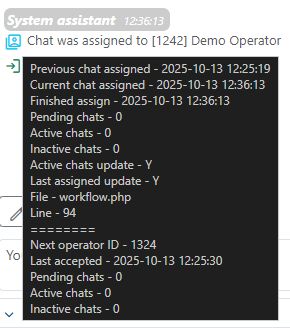
Precaution action
- Disable live auto assignment and let workflow cronjob do that. Run cronjob in debug mode.